Saving videos from Pinterest on iPhone sounds simple until you actually try it. Sometimes the video opens in the app instead of downloading, sometimes Safari redirects endlessly, and in many cases you end up saving only an image instead of the video itself.
After testing different methods on iOS 17 and newer iPhones, this guide covers the easiest way to download Pinterest videos directly to your device without complicated apps or unnecessary setup.
Why Download Pinterest Videos on iPhone?
Pinterest is full of useful short videos — recipes, fashion ideas, DIY tutorials, workouts, travel clips, and aesthetic edits. But the Pinterest app itself still doesn’t provide a proper built-in option to save most videos to your Photos app.
Downloading the video lets you:
- Watch offline anytime
- Repost or share privately
- Save inspiration before posts disappear
- Keep tutorials directly in your camera roll
The process only takes about a minute once you know the correct steps.
How to Download Pinterest Videos on iPhone
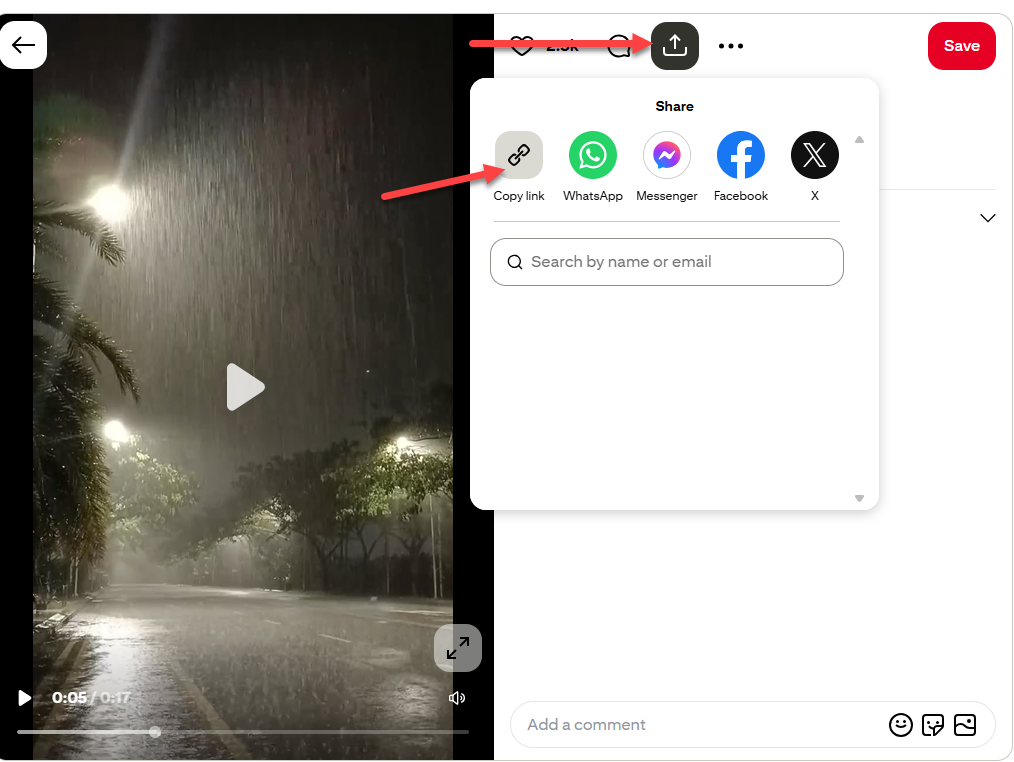
Step 1: Copy the Pinterest Video Link
First, open the Pinterest app or website on your iPhone.
Find the video you want to save, then:
- Tap the Share button
- Select Copy Link
Pinterest will copy the URL to your clipboard automatically.
If you are using Safari instead of the app, you can also copy the link directly from the address bar.
Step 2: Open a Pinterest Video Downloader
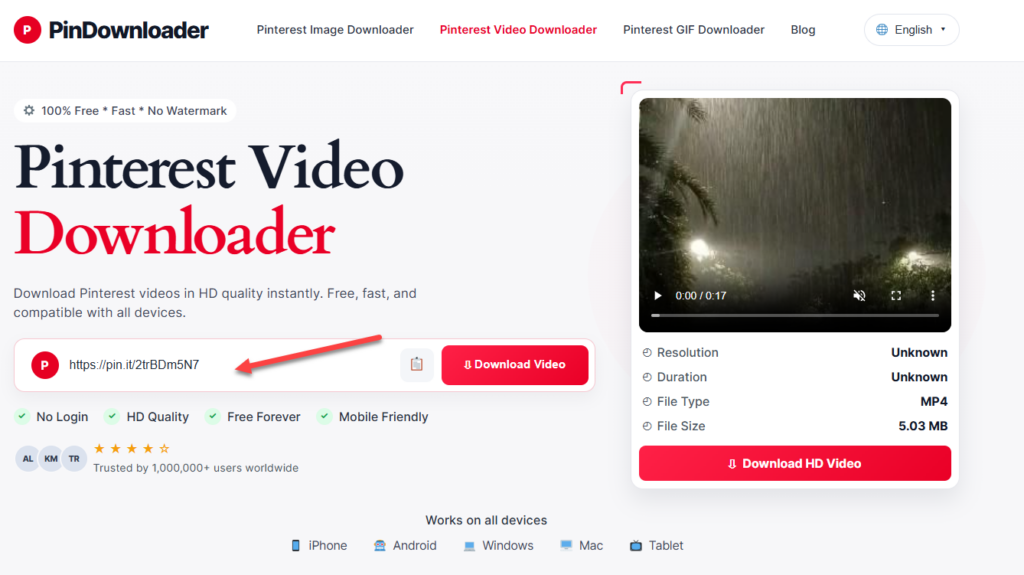
Next, open Safari and go to your preferred Pinterest downloader website.
Paste the copied Pinterest URL into the download box.
Most tools will automatically detect:
- Video quality
- MP4 format
- Thumbnail preview
After processing, the site should generate a download button.
A good downloader should work directly inside Safari without requiring:
- App installation
- Account registration
- Browser extensions
Step 3: Download and Save the Video
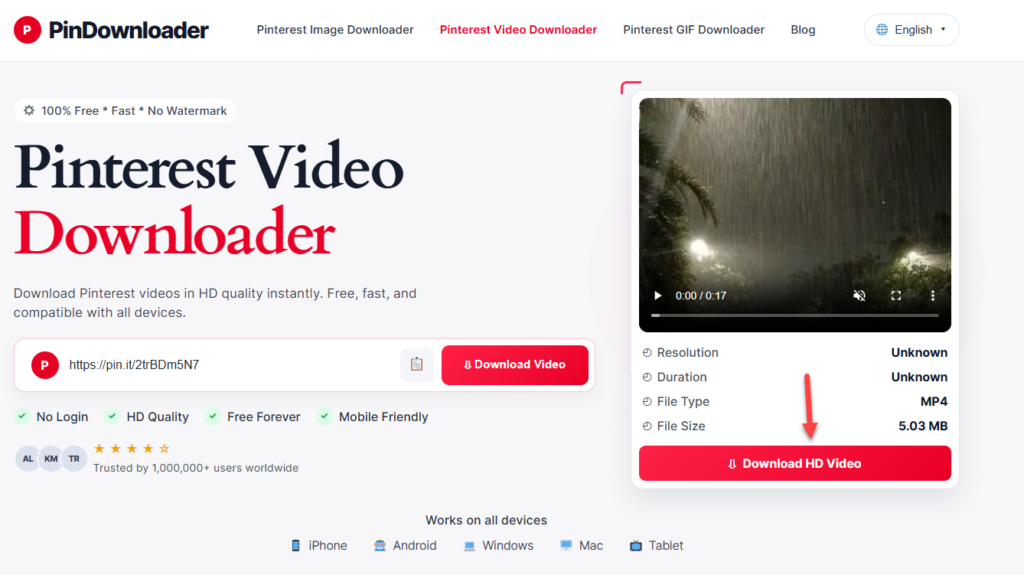
Tap the Download Video button.
Depending on your iPhone settings and iOS version, one of these things will happen:
Option A: Video Saves Automatically
The video may go directly into:
- Photos app
- Files app → Downloads folder
Option B: Safari Opens the Video
If Safari opens the video in a new tab:
- Tap and hold the video
- Choose Save to Photos
Option C: File Downloads to Files App
If the file appears in Downloads:
- Open the Files app
- Find the downloaded MP4
- Tap Share
- Select Save Video
Once saved, the video will appear inside your iPhone gallery like a normal video.
Best Settings for iPhone Users
Some Pinterest downloaders behave differently on iPhone compared to desktop browsers. These small adjustments usually make the process smoother:
Use Safari Instead of Chrome
Safari handles iOS downloads more reliably, especially when saving MP4 files directly to Photos.
Chrome on iPhone sometimes:
- Opens blank tabs
- Triggers redirect loops
- Blocks automatic downloads
Disable Content Blockers Temporarily
Ad blockers or privacy extensions may interfere with the download process.
If the site keeps refreshing or failing:
- Tap the aA icon in Safari
- Disable content blockers for that page
- Reload and try again
Update iOS
Older iOS versions occasionally fail to recognize downloadable video files properly.
If downloads constantly fail, updating iOS can help fix:
- Broken save dialogs
- Safari download issues
- Media permission errors
Common Issues and Fixes
Pinterest Video Won’t Download
This is the most common problem on iPhone.
Usually it happens because:
- The copied URL is incomplete
- Pinterest shared an image post instead of a video
- Safari blocked the redirect
Try these fixes:
- Re-copy the Pinterest link
- Open the pin directly before copying
- Refresh the downloader page
- Use Safari instead of in-app browsers
If the video still fails, test another Pinterest post to confirm the issue is not from the original pin itself.
It Downloads as an Image Instead of a Video
Some Pinterest pins contain:
- Static images
- GIF-style previews
- Carousel posts
At first glance they look like videos, but they are not actual video files.
To verify:
- Look for a play button on the Pinterest post
- Open the pin fully before copying the link
If the downloader only generates JPG output, the original post is likely not a real video.
Redirect or Infinite Loading Error
Redirect loops are especially common on iPhone.
This usually happens because:
- Safari privacy settings block redirects
- Content blockers interfere with scripts
- Pinterest opens inside the app browser
Fixes:
- Open the downloader directly in Safari
- Disable “Prevent Cross-Site Tracking” temporarily
- Clear Safari cache
- Retry using a fresh copied link
To clear Safari cache:
- Settings → Safari → Clear History and Website Data
After clearing cache, most redirect problems disappear.
Is It Safe to Download Pinterest Videos on iPhone?
Generally, yes — as long as you use a trustworthy downloader and avoid suspicious popups.
You should avoid websites that:
- Ask for Apple ID login
- Require app installation
- Force notification permissions
- Redirect to unrelated pages repeatedly
A normal Pinterest downloader only needs the Pinterest URL itself.
FAQ
Does the Downloaded Video Have a Watermark?
Most Pinterest downloaders save videos without adding extra watermarks.
However, if the original creator already included text or branding inside the video, that content will remain.
Do I Need to Log Into Pinterest?
No. In most cases, you do not need a Pinterest account to download public videos.
You only need:
- The Pinterest video link
- A browser like Safari
Private or restricted pins may not work unless you can access them normally through Pinterest.
Can I Use This on Any iPhone?
Yes. The process works on most modern iPhones, including:
- iPhone 11
- iPhone 12
- iPhone 13
- iPhone 14
- iPhone 15
- Newer iOS devices in 2026
As long as Safari supports downloads, the method should work.
Final Thoughts
Downloading Pinterest videos on iPhone is much easier now than it used to be a few years ago. Once you know how Safari handles downloads, the process becomes quick and straightforward.
The key things to remember are:
- Copy the correct Pinterest video link
- Use Safari for better compatibility
- Save the MP4 to Photos if it opens in a new tab
- Disable blockers if redirects appear
If one downloader fails, the issue is usually related to the specific Pinterest post rather than your iPhone itself.
Leave a Reply